
Overview
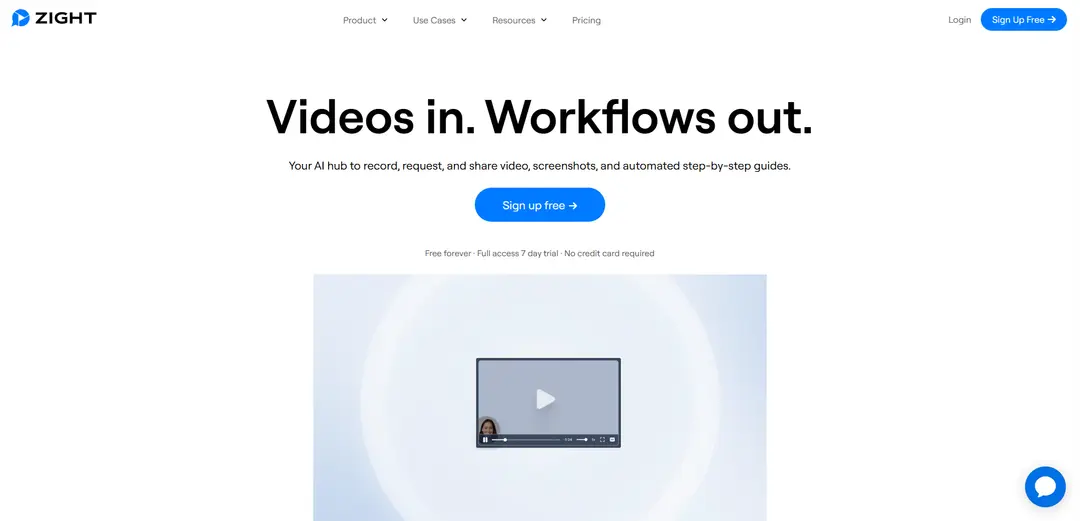
How much time does your team waste writing lengthy explanations that could be shown in a 30-second video? Zight addresses this by transforming visual communication. Formerly known as CloudApp, this AI-powered platform enables over 5 million users, including Fortune 500 companies, to create and share screen recordings, screenshots, and GIFs instantly. It goes beyond simple capture by using AI to automatically generate transcripts, summaries, and step-by-step guides from video content.
Key Features
- AI-Powered Smart Actions: Automatically converts video recordings into structured documentation like Standard Operating Procedures (SOPs), bug reports, and step-by-step guides, complete with AI-generated transcriptions and summaries in over 50 languages.
- Screen Recording & Capture: Effortlessly record your screen, webcam, or both with audio. The tool also provides robust screenshot capabilities, including full-page scrolling captures for documenting entire web pages.
- Instant Cloud Sharing: Every capture—video, screenshot, or GIF—is automatically uploaded to the cloud and generates a shareable link, eliminating large file attachments in emails and messages.
- Built-in Annotation Tools: Annotate screenshots and videos directly after capture with arrows, text, shapes, and blur tools to highlight key information or obscure sensitive data.
- GIF Creation: Quickly record short, loopable animations perfect for demonstrating quick actions or UI interactions in chat messages and documentation.
- Video Editing Suite: Trim, crop, and apply filters to your recordings within the application to create polished, professional-looking videos without needing separate editing software.
- Cross-Platform Availability: Zight works seamlessly across desktop (Mac and Windows), browser (via Chrome extension), and mobile (iOS) platforms, ensuring a consistent experience.
- Content Organization: A searchable library allows you to easily find and manage all your past captures, making it simple to reuse and reference previous visual communications.
- Integration Marketplace: Connects with popular workplace apps like Zendesk and others through a dedicated marketplace to streamline workflows directly within your existing tools.
- Request Video Logs: A unique feature that allows team members to request a screen recording from colleagues, streamlining the process of gathering visual feedback or bug reports.
Pros
- Significant Time Savings: Drastically reduces the need for written explanations by allowing users to show instead of tell, which is often faster and clearer for complex topics.
- Powerful AI Summarization: The automatic transcription and summarization features extract immediate value from video content, turning a simple recording into actionable documentation.
- Exceptional Ease of Use: The intuitive interface and customizable keyboard shortcuts make capturing and sharing content a seamless part of any workflow with a very shallow learning curve.
- Enhanced Collaboration: Instant cloud sharing with permission controls facilitates smoother communication within teams and with clients, making feedback loops more efficient.
- All-in-One Solution: Combines screenshot, recording, GIF creation, editing, and AI features in a single platform, reducing the need for multiple disparate tools.
- Strong Security and Control: Offers customizable link expiration and access permissions for shared content, ensuring sensitive information remains secure.
Cons
- Limited Advanced Editing: While suitable for quick edits, the built-in video editor lacks the advanced features of dedicated video editing software, which may be a constraint for professional creators.
- Internet Dependency: Core functionalities like cloud sharing and AI processing require an active internet connection, limiting offline usability for certain tasks.
- Free Plan Restrictions: The free tier has limitations on recording length and storage space, which may not be sufficient for power users or teams with high-volume needs.
- Potential Performance Impact: On older or less powerful computers, running the application continuously in the background may occasionally affect system performance.
- AI Accuracy Variability: While generally effective, AI-generated transcripts and summaries may require minor manual corrections for complete accuracy, especially with technical jargon or accents.
Use Cases
- Customer Support: Create quick video responses to customer inquiries, demonstrating solutions directly on-screen, which is more personal and effective than text-based replies.
- Software Development & QA: Report bugs with precise screen recordings and annotated screenshots, providing developers with clear, reproducible steps to identify and fix issues.
- Product Training & Onboarding: Develop a library of short, searchable video guides and SOPs for training new employees on software tools and internal processes.
- Sales & Marketing: Craft personalized video pitches or product demonstrations to engage prospects more effectively than static slides or emails.
- Design Feedback: Share design mockups and collect feedback by allowing team members to annotate directly on screenshots or record their thought process.
- Async Team Updates: Replace lengthy status update meetings with short video summaries, allowing team members to consume the information on their own time.
Quick Start Guide
1. Download and install the Zight application for your operating system (Mac/Windows) or the browser extension for Chrome. 2. Configure your preferences, such as custom keyboard shortcuts for capture commands, through the settings menu. 3. Start capturing by using a hotkey to take a screenshot or begin a screen recording. Your content will be instantly uploaded and a shareable link copied to your clipboard.
Conclusion
Zight excels as a practical and powerful tool for any team looking to enhance clarity and efficiency in their communication. Its core strength lies in simplifying the process of creating and sharing visual content, with the AI features adding a significant layer of productivity by automating documentation. It is highly recommended for customer support, software development, and training teams where visual context is critical. While power users might need more advanced editing capabilities, for the vast majority of business communication needs, Zight provides an almost indispensable utility. The recent addition of an integration marketplace and features like Request Video Logs shows a clear focus on deepening its value within collaborative work environments.
Frequently Asked Questions
Yes, Zight offers a free plan with basic features, which typically includes a limited number of recording minutes and storage. Paid plans unlock longer recordings, more storage, advanced AI features, and team management capabilities.
The free version usually has restrictions on the maximum length of individual video recordings, total cloud storage capacity, and may lack access to premium AI features like smart summarization and advanced sharing controls.
After you finish a screen recording, Zight's AI automatically transcribes the audio. It then analyzes the transcript to identify key points and generates a concise text summary, and can even break the video into chapters for easier navigation.
Yes, your Zight account can be used across multiple devices. You can install the desktop app on your computer, the browser extension, and the mobile app, and your captured content will sync to your cloud library.
Zight integrates with various productivity and support platforms like Zendesk, Slack, and others through its Integration Marketplace. This allows you to share captures and access Zight features directly within those apps.
Zight provides security features like SSL encryption for data transfer and storage. You can also control access to your shared links by setting passwords, expiration dates, and disabling downloads.
Typically, you would retain access to your existing content, but you may lose the ability to create new captures under the premium features. It's best to check Zight's specific policy on data retention upon cancellation.


